
How to Connect Dify to DDS Hub (Cheap Claude & GPT)
Dify is one of the most popular open-source platforms for building LLM apps — chatbots, agents, and workflows — through a visual interface, with little or no code. But the official model providers can get expensive fast at production volume.
The fix is simple: add DDS Hub to Dify as an OpenAI-compatible model provider. You keep Dify's visual builder and get Claude, GPT-5.5 and GLM at a fraction of list price. This guide walks through the setup, step by step — no code required.
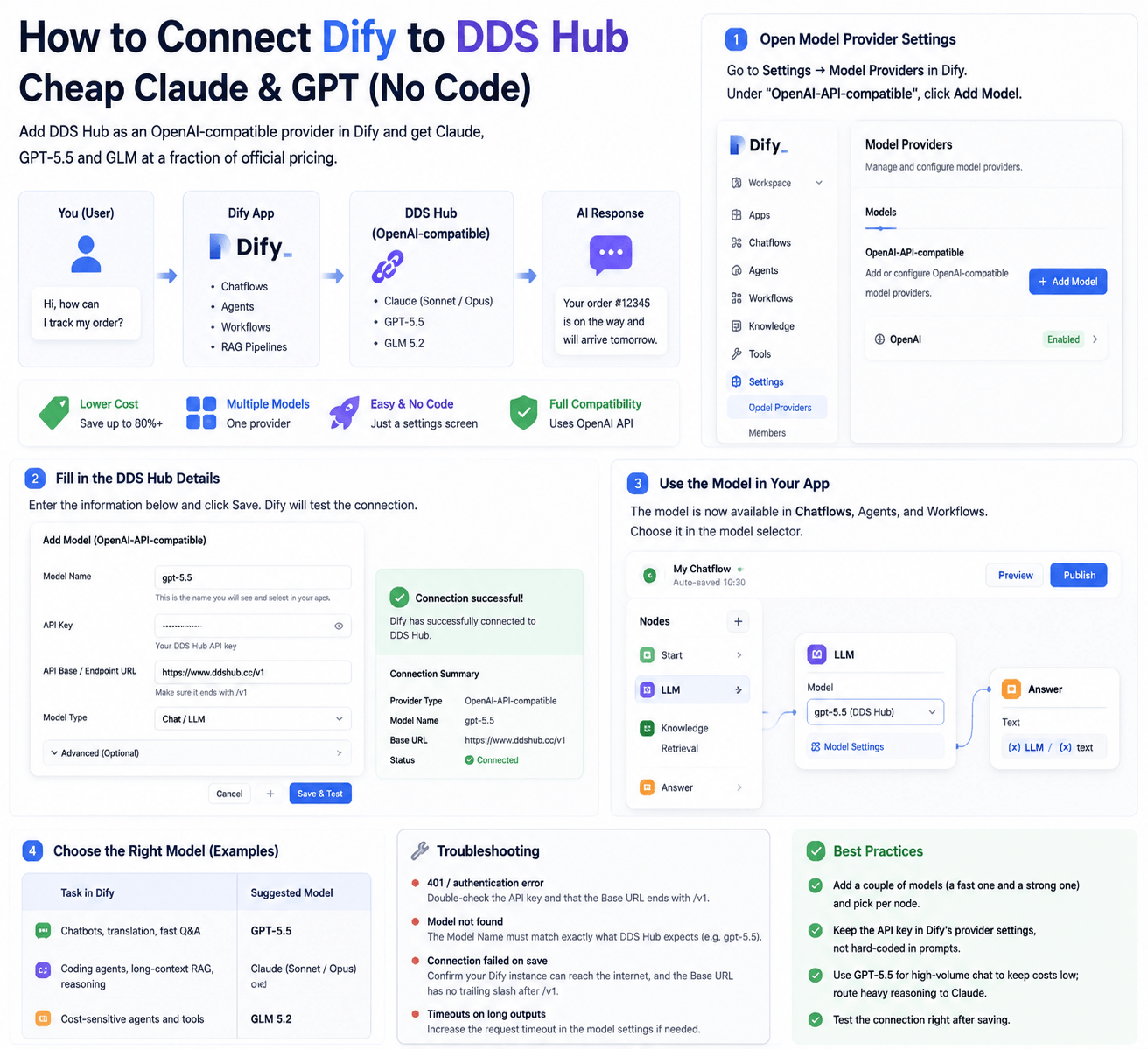
Why Connect Dify to DDS Hub
Dify lets you build production LLM apps visually: prompt orchestration, RAG pipelines, agents and workflows. What it doesn't do is give you cheap model access — that's on the provider you connect.
Pointing Dify at DDS Hub gives you:
- Lower cost — Claude, GPT-5.5 and GLM at a fraction of official pricing
- Multiple models, one provider — switch models inside Dify without new integrations
- No code — it's a settings screen in Dify, not a deployment
- Full compatibility — DDS Hub speaks the OpenAI API, which Dify supports natively
For a deeper look at the models you'll be calling, see our GPT-5.5 API guide — this article is the "use it inside Dify" companion to it.
What You Need
- A running Dify instance (Dify Cloud or self-hosted)
- A DDS Hub API key
- Two values you'll paste into Dify:
- Base URL: https://www.ddshub.cc/v1 - Model name: e.g. gpt-5.5
Step 1: Open Model Provider Settings in Dify
In Dify, go to Settings → Model Providers. Look for the OpenAI-API-compatible provider (Dify supports adding any OpenAI-compatible endpoint, not just OpenAI itself).
Click Add Model under that provider.
Step 2: Fill in the DDS Hub Details
In the add-model dialog, enter:
- Model Name:
gpt-5.5(this is what you'll select inside your apps) - API Key: your DDS Hub key
- API Base / Endpoint URL:
https://www.ddshub.cc/v1 - Model type: Chat / LLM
- Leave the other fields at their defaults unless you have a reason to change them
Save. Dify will validate the connection by making a test call.
Step 3: Use the Model in Your App
Now the model is available everywhere in Dify. Open any Chatflow, Agent or Workflow, and in the model selector pick the model you just added (gpt-5.5).
That's it — your Dify app now runs on DDS Hub. Send a test message and you should get a reply routed through the gateway.
Choosing the Right Model
Because DDS Hub exposes multiple models through the same OpenAI-compatible provider, you can add several and switch per app or per node:
| Task in Dify | Suggested model |
|---|---|
| Chatbots, translation, fast Q&A | GPT-5.5 |
| Coding agents, long-context RAG, reasoning | Claude (Sonnet/Opus) |
| Cost-sensitive agents and tools | GLM 5.2 |
To add another model, just repeat Step 2 with a different Model Name — same base URL and key.
Troubleshooting
A few issues come up often:
- 401 / authentication error — double-check the API key and that the Base URL ends in
/v1 - Model not found — the Model Name must match exactly what DDS Hub expects (e.g.
gpt-5.5) - Connection failed on save — confirm your Dify instance can reach the internet, and the Base URL has no trailing slash after
/v1 - Timeouts on long outputs — increase the request timeout in the model settings if your app generates long responses
Best Practices
- Add a couple of models (a fast one and a strong one) and pick per node
- Keep the API key in Dify's provider settings, not hard-coded in prompts
- Use GPT-5.5 for high-volume chat to keep costs low; route heavy reasoning to Claude
- Test the connection right after saving so you catch a wrong Base URL or key early
Final Thoughts
Connecting Dify to DDS Hub takes a few minutes and no code: add an OpenAI-compatible provider, paste the Base URL and key, pick your model. You keep everything Dify is great at — visual orchestration, agents, RAG — while cutting your model bill dramatically.
Start with one model, confirm the test call works, then add more and route each app to the model that fits. When you outgrow one model, switching is just a dropdown.
FAQ
Does Dify work with DDS Hub?
Yes. Add DDS Hub as an OpenAI-API-compatible provider with Base URL https://www.ddshub.cc/v1, your API key, and a model name like gpt-5.5.
Which model should I use in Dify?
GPT-5.5 for fast, cheap chat and translation; Claude (Sonnet/Opus) for coding, long context and reasoning; GLM 5.2 for cost-sensitive agents.
Do I need to write any code?
No. It's a model-provider setting in Dify's UI — paste the Base URL, key and model name, and save.
Can I use multiple models through one connection?
Yes. Add each model under the same OpenAI-compatible provider using the same base URL and key, then pick per app or per node.
What if the connection test fails?
Check that the Base URL ends in /v1, the API key is correct, and the model name matches exactly what DDS Hub expects.